
eBook Image Saver is a Windows application that automatically turns Kindle pages and saves them as image files.
It supports Kindle for Windows and Kindle for Web, and can also save multiple books in succession as a batch.
Current Version
Try the app for free with no expiration date.
The current version supports Kindle for Windows and Kindle for Web.
File size: 55 MB | Updated: Sep. 29, 2026
Older Version
Try the app for free with no expiration date.
This older version supports Kindle for PC only and is no longer under development.
File size: 59 MB | Updated: May 10, 2026
Demo Video
39-second demo: Saving two 10-page books in succession.
The video is played at 3× speed.
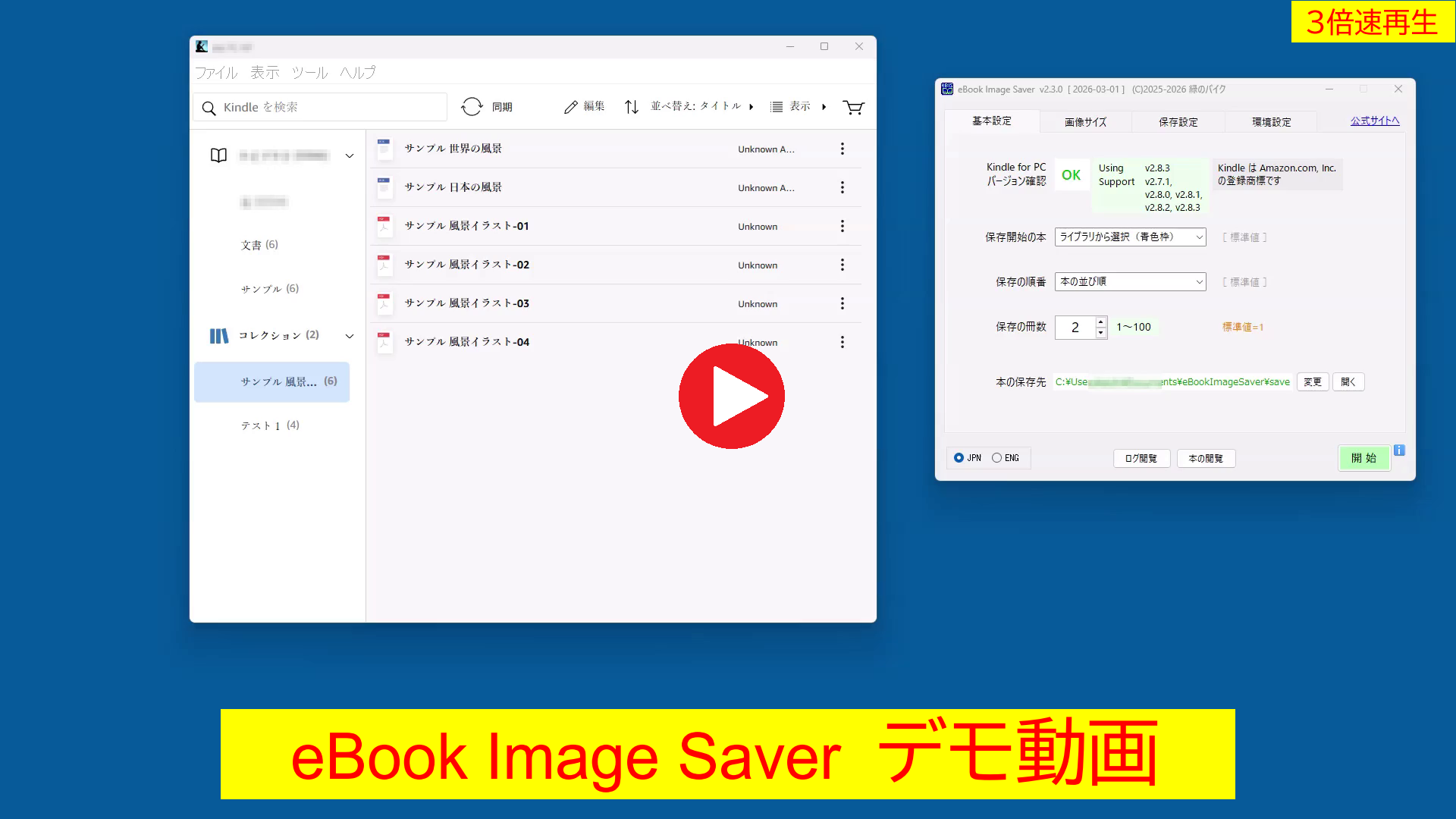
Note: This demo video shows an older version of the app that supports Kindle for PC.
Operation with Kindle for Windows is largely similar.
Main Features
- Automatically turns Kindle pages and saves them as image files.
- Supports Kindle for Windows.
- Supports Kindle for Web.
- Automatically detects the page area to be saved.
- Supports saving multiple books.
- Includes OCR-assisted book title detection.
- Can continue saving with minimal user operation after setup.
Basic Information
| Application | eBook Image Saver |
|---|---|
| Latest Version | v5.1.4 (updated Sep. 29, 2026) |
| Supported Kindle |
Kindle for Windows v1.0.25218 (updated Sep. 10, 2026) Kindle for Web (tested Sep. 2026) |
| Operating System | Windows 11 |
| Developer | MidorinoBike (Japan) |
How to Use
Launch the app by running eBookImageSaver.exe. The default settings are already configured, so no complicated setup is required.
After launching the app, click the ENG button in the lower-left corner of the window to switch the user interface to English.
To use the app, open Kindle, click the title of the book you want to save in the Kindle library list (a blue border will appear around the selected book), and then click the START button in the app.
The app automatically opens the selected book, detects the book display area on the screen, crops the required area from each page, and saves the pages as image files in order.
When the final page is reached, the book is closed automatically.
The image format can be selected as WebP or JPEG. The saved images are packaged into a single ZIP file (CBZ format). The file name is based on the book title shown in Kindle, with the .zip extension added.
The saving speed depends on factors such as your PC performance and image size. A typical manga book can usually be saved in about 4–5 minutes per book.
The final file size depends on the selected image size and quality. For a typical manga book, the saved file is usually about 30–60 MB per book.
In Free Trial mode, a confirmation step (entering a two-digit number) is required every 50 pages. Except for this limitation, Free Trial mode provides the same features as the paid version.
Application Interface
Main operations, such as starting and viewing, are performed using the buttons located at the bottom of the window.
Detailed settings are available in the following four tabs.
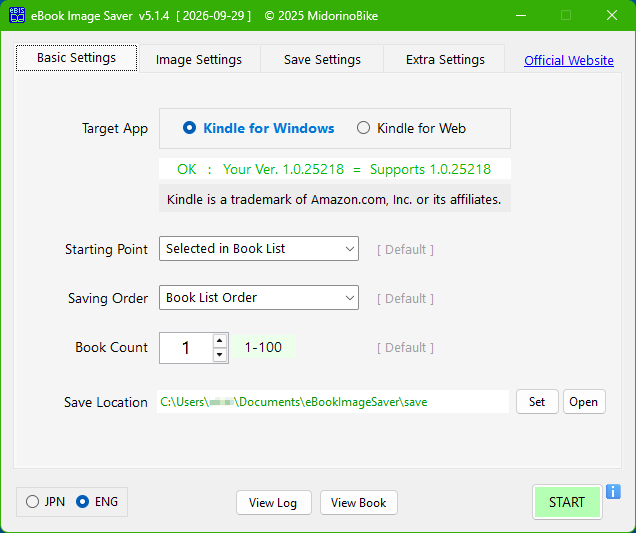
(1) Basic Settings
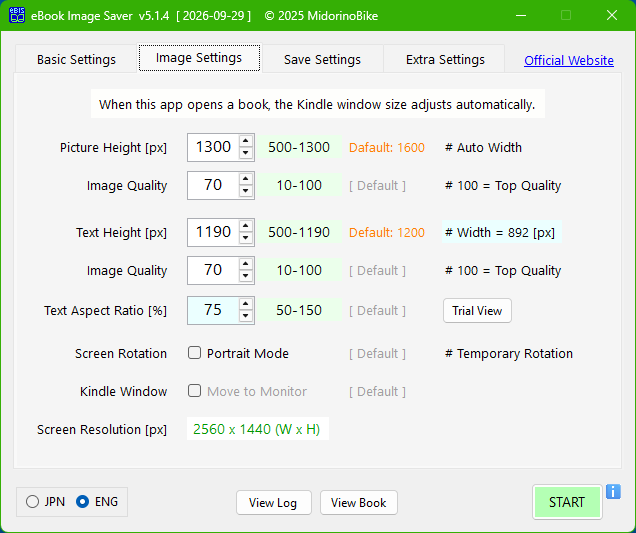
(2) Image Settings
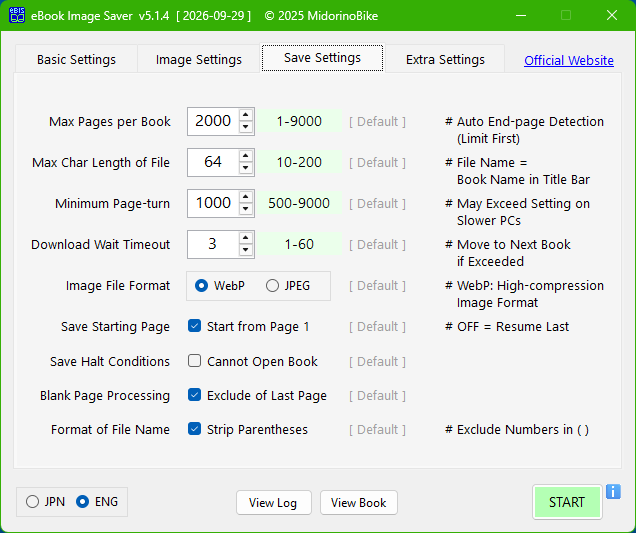
(3) Save Settings
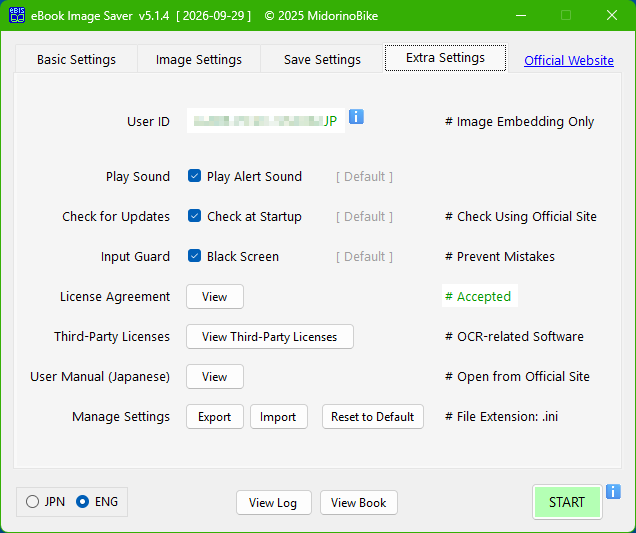
(4) Extra Settings
License Purchase
A perpetual license is available from Vector, one of Japan’s largest software download and distribution websites, for JPY 2,970 (tax included).
Payment is made by credit card through Vector’s ShareRegi service.
After purchase, place the license file eBookImageSaver.lic in the same folder as the app.
With a valid license, the 50-page confirmation step required in Free Trial mode is removed.
Notice
eBook Image Saver is an independent application and is not affiliated with, endorsed by, or sponsored by Amazon.
Kindle and Amazon are trademarks of Amazon.com, Inc. or its affiliates.
Users are responsible for complying with applicable laws, copyright rules, and the terms of service of the content and services they use.
Contact
For inquiries, please contact:
Copyright © 2025–2026 MidorinoBike. All rights reserved.